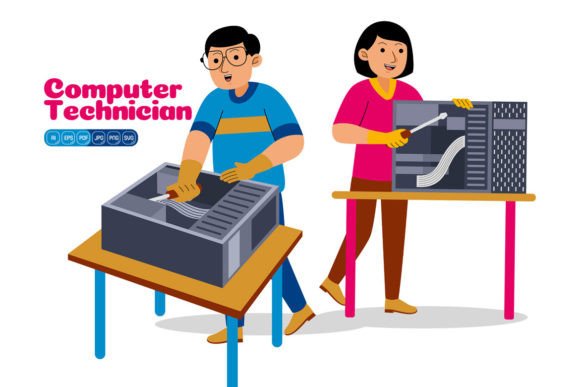
Man and Woman Computer Technician
When you build websites, craft social media campaigns, or design printed materials, finding the right visual assets often becomes a bottleneck. Generic stock photos can clash with a brand’s color palette, and custom illustrations from scratch eat up time and budget. The Man and Woman Computer Technician vector pack steps into that gap as a versatile, editable set of 100 high-resolution flat design illustrations. These aren’t just clip art; they’re building blocks a designer can reshape, recolor, and recombine to produce on-brand graphics in far less time than starting from an empty canvas.
This resource aims at a practical reality: you need consistent, professional imagery that communicates technical support, IT services, repair workflows, or customer assistance without forcing a fixed visual story. Because each shape is individually editable, you can match the illustrations to your existing brand guidelines, adapt them for dark mode interfaces, or tweak the characters to reflect a specific uniform or toolset. The pack fits into real workflows where speed, flexibility, and file compatibility determine whether an asset gets used or abandoned.
What the Pack Actually Contains
At its core, you receive 100 vector illustrations in a flat design style. The files arrive in multiple universal formats: Adobe Illustrator AI, EPS, SVG, PDF, JPG, and PNG with transparent background, all at a massive 5000 × 5000 pixel resolution. This selection isn’t redundant; each format serves a different stage of your process. AI and EPS files keep every layer and path intact for deep editing inside vector software. SVG files integrate directly into web projects or Canva. The PNG with transparency slips into presentation slides or video overlays without a background rectangle ruining the composition. JPG offers a lightweight, print-ready fallback when vectors aren’t needed.
The subject matter centers on male and female computer technicians in various poses: holding tools, diagnosing hardware, working on laptops, discussing solutions, and interacting with customers. Because the pack includes both genders, you can represent team diversity accurately rather than relying on a single default figure. Every character, device, and background element exists as a separate editable shape. That means you can change a laptop’s screen content, swap a tool for your company’s proprietary device, or adjust skin tones and hair styles to reflect your actual workforce—all without degrading image quality.
Where These Illustrations Fit in Your Workflow
Before a project begins, you often gather reference images or mood boards. The Man and Woman Computer Technician vectors can populate early-stage mockups quickly, letting stakeholders visualize a landing page or brochure layout with realistic placeholder art that already hints at the final tone. Since the files are resizable and color-editable, you won’t have to explain that “the colors will change later”; you can demonstrate the exact palette during the concept phase.
During active design work, the pack functions as a modular system. Rather than searching multiple libraries for a technician graphic that matches one requirement, you pull from a cohesive set where every illustration shares the same line weight, lighting logic, and proportion. If you need a banner showing a consultant repairing a tablet while a customer watches, you might combine two separate illustrations: one character with a tablet, another observing. Because the shapes remain independent, you can delete the original background from one, merge the figures, and place them against a unified backdrop. This compositing approach dramatically reduces revision cycles compared to commissioning a new illustration or licensing a single-use stock vector.
After a project launch, the illustrations don’t become obsolete. They transition into social media posts, email headers, printed flyers, or onboarding documents. The transparent PNG variant lets you overlay a technician figure onto a photograph of your actual office, merging the illustrated character with a real environment. That capability often bridges the gap between completely illustrated and completely photographic campaigns, giving your marketing a distinctive hybrid look.
Customizing Colors, Shapes, and Compositions
The most common friction with pre-made illustrations is color mismatch. A well-designed vector can still look out of place if its palette doesn’t align with your brand. Since every shape in this pack is editable, you can isolate a character’s shirt, change its fill to your brand blue, adjust the gradient on a laptop screen, or recolor a background in three clicks. Working in Adobe Illustrator, you use the Direct Selection tool to pick individual paths, swap fills, or apply global color swatches that cascade across multiple elements. Inkscape or Affinity Designer handle the EPS and SVG files similarly, though you might need to ungroup elements first.
Resizing isn’t merely stretching a bounding box. Because the artwork is vector-based at 5000 × 5000 pixels, you can scale a tiny icon for a business card up to a full-size trade show banner without pixelation. That single master file serves every resolution you’ll ever need. When exporting for web, you can drop the PNG width to 800 pixels for a fast-loading blog image while keeping the original file intact for future high-resolution needs. For print, the JPG at 5000 × 5000 pixels provides over 16 inches at 300 DPI, large enough for most posters and inserts.
Combining elements is where the pack shifts from a passive asset library to an active design tool. Suppose you’re creating an infographic about IT support turnaround times. Instead of using generic icons, you might take a technician figure, duplicate it, recolor each copy to represent a different team, and place them along a timeline. You can extract a laptop, a screwdriver, and a speech bubble from different illustrations, reassemble them into a new composition, and save that as a custom template for future infographics. The consistent flat style ensures that even recombined pieces look like they were drawn together.
Practical Integration Across Different Media
Website designers often need hero images that load quickly and align with a grid. The SVG format offers that speed. You can inline the SVG code directly into your HTML to maintain crisp rendering at any viewport size, while using CSS to recolor elements on hover or in response to dark mode. A landing page for an IT service could feature a male technician troubleshooting a server on the primary banner, then use a female technician explaining the solution in the secondary section—both edited to match the site’s accent color in real time if you set up the SVG with CSS variables.
Social media calendars benefit from the pack’s variety. Rather than posting the same imagery repeatedly, you rotate through the 100 illustrations, occasionally cropping or refocusing to create new compositions. The transparent background PNGs work perfectly for Instagram stories or LinkedIn posts where you overlay text. Because the illustrations show technicians in clear, recognizable poses, viewers immediately understand the topic before reading a headline. That instant recognition improves engagement on busy feeds where people scroll quickly.
For print materials like brochures, flyers, or user manuals, the high-resolution formats prevent the blurry, amateurish look that often creeps in when low-res web images are forced into print. You can place AI or EPS files directly into InDesign, maintain vector sharpness, and even use spot colors if your printer requires them. In documentation, illustrated characters can guide the reader through troubleshooting steps without the privacy concerns or logistical headaches of using real staff photos.
Organizing and Managing the Asset Library
With 100 illustrations, organization becomes critical. Treat the files as you would any other professional asset library. After downloading, store the source AI and EPS files in a “Source” folder backed up to cloud storage. Create a separate “Derivatives” folder for your customized versions. Use a naming convention that includes the original file number, a short description, and the client or project name—for example, tech_047_tablet_repair_clientX_v2.ai. This prevents you from overwriting original compositions and saves time when a client returns two years later asking for the exact illustration you used in a brochure.
Consider maintaining a visual catalog. Open a blank Illustrator document, place previews of every illustration you’ve modified or plan to use frequently, and label each with its file name and a color hex code note. This one-page reference becomes invaluable during brainstorming sessions or when a team member needs to pick an image quickly. If you work in a collaborative environment, upload the SVG and PNG variations to a shared design system folder (like a Figma asset library or a dedicated Google Drive) so non-designers can use them in presentations or documents without asking you for export assistance each time.
Maintaining Consistency Across Projects
One underappreciated benefit of a cohesive illustration set is visual consistency. When your website’s “About Us” page features a stylized technician that matches the one in your email signature and the one on your printed flyers, prospects perceive a higher level of professionalism. This pack makes that consistency achievable by design. The flat style, uniform proportions, and limited color palettes (before you edit them) mean every illustration belongs to the same family. Even if you heavily recolor some and leave others near-original, the underlying drawing style connects them.
Consistency also streamlines feedback. When you show a client or manager two design options that use different illustrations from the same pack, they focus on the layout and messaging rather than getting distracted by mismatched art styles. They won’t question why one technician looks realistic while the other appears cartoonish; all options operate within the same visual language. That reduces approval cycles and helps you move faster from draft to final.
Workflow Examples with Other Tools
Vector editing isn’t the only environment where these illustrations shine. If you produce How-To videos or webinars, drop a PNG illustration into Camtasia or Premiere Pro as an animated overlay. Keyframe the position and scale to create a “pop-in” effect when introducing a new topic, and use the transparent background to keep the underlying slide visible. The flat design style holds up well in motion because it avoids complex gradients that can break apart during compression.
For data visualization in presentations, bring an SVG into PowerPoint or Google Slides. Ungroup it (PowerPoint’s “Convert to Shape” function works if the SVG is structured cleanly) and recolor individual parts to match your slide deck’s theme. A slide showing IT support ticket metrics becomes more engaging when a mini technician figure appears beside each data point, creating an illustrated dashboard effect that’s fully editable without leaving the presentation tool.
E-learning developers often need consistent character sets for scenario-based training. The Man and Woman Computer Technician illustrations can populate branching scenarios where learners choose how a technician should handle a customer issue. By duplicating and slightly modifying poses, you can show the same character reacting with concern, explaining a solution, or celebrating a resolved ticket—all while maintaining visual continuity across dozens of slides or interactive screens.
Long-Term Value and Reusability
Licensing can be a hidden frustration with stock imagery. Some platforms limit usage to a single project, or they revoke access after a subscription lapses. With this vector pack, once you purchase it, you keep all 100 illustrations indefinitely. You can reuse them across unlimited personal and commercial projects without per-use fees. That long-term access encourages creative experimentation. You might design a quick social post today, a full website illustration system next month, and a printed booth backdrop six months later—all from the same pack, each time tweaking colors and compositions to suit the context.
Because the files remain fully editable, they don’t become outdated as your brand evolves. Updating your brand’s primary color from teal to navy doesn’t require hunting down new illustrations; you open the AI file, adjust swatches, and re-export the formats you need. This adaptability transforms the pack from a one-project purchase into a lasting component of your design toolkit.
Avoiding Common Pitfalls
Even with flexible assets, mismanagement can create extra work. One common error is editing a flattened JPG in a raster program like Photoshop, which introduces artifacts and loses the flexibility you paid for. Always start editing from the AI, EPS, or SVG versions in a vector editor. If you must work in a raster tool for a specific effect, keep the original vector file untouched and export a high-resolution PNG as the source for raster edits. That way you preserve a clean, infinitely scalable master.
Another trap is over-editing to the point of inconsistency. If you stretch proportions dramatically or add competing shading styles, the illustration may look out of place against the rest of the set. The pack’s flat design style benefits from subtle adjustments rather than radical overhauls. Stick to the original line weights and avoid mixing 3D elements with flat vectors unless that’s a deliberate stylistic choice you’ve validated across all related materials.
Finally, avoid using the same illustration for every single touchpoint. With 100 options, you have enough variety to rotate images based on topic, audience, or campaign. Audit your published materials quarterly and swap out overused illustrations for fresh ones the audience hasn’t seen. That rotation keeps your visual identity dynamic while still anchored in the same cohesive style.
Bringing It Into Your Next Project
Start small. Pick three illustrations that align with an upcoming deliverable—say, a repair technician, a customer interaction, and a diagnostics scene. Open them in your vector editor, adjust the color palette to your brand, and export the PNGs at the sizes your project needs. Use those three across your social channels for a week, noting which compositions resonate. Then expand into infographics or website banners, blending additional illustrations as your comfort with the editing process grows.
The Man and Woman Computer Technician pack isn’t a magic solution that eliminates design work. It’s a time multiplier. It removes the repetitive task of constructing technician character art from scratch and lets you focus on higher-value decisions like composition, messaging, and audience alignment. When integrated thoughtfully into your production pipeline—whether you’re a solo freelancer juggling multiple clients or part of a larger marketing team—these illustrations become far more than downloads; they become a reusable visual language that supports everything from quick social graphics to permanent brand identity materials.